Clear, Smooth Image, Online, Instantly
Convert Photo to Clear Smooth Image, by 1 Click
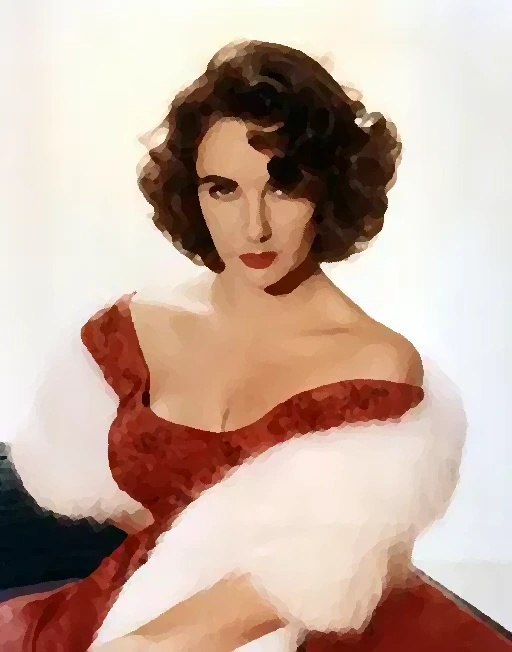
Smoothen small areas: color mixing less
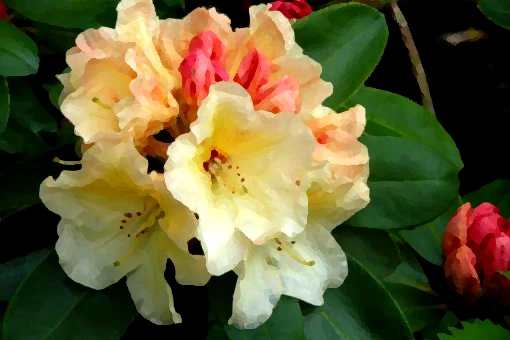
photo smoothen : with more color mixing
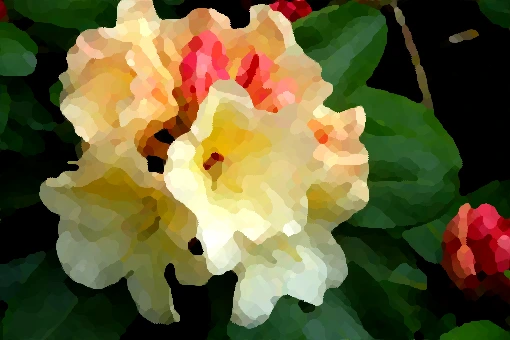
Intensely image smoothen by more color mixing
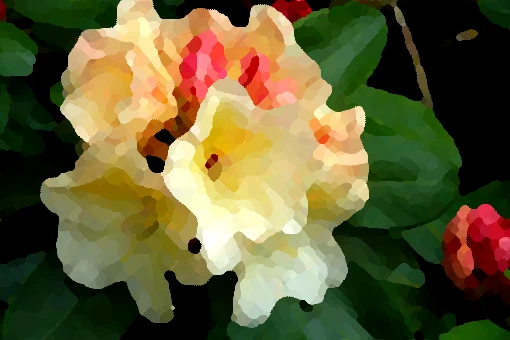
Convert to Cartoon , Painting , or Resize/Crop
Transformation of Shapes in Image


Beautiful Gray Shades Pictures


Replace Colors Easily


Increase or Reduce RGB Primary Colors, Retaining Color Balance
Increase R/G/B


Decrease R/G/B


Convert to Cartoon , Painting , or Resize/Crop
Transformation of Shapes in Image


Resize or Crop Image


Adjustments to make more clear and smooth image
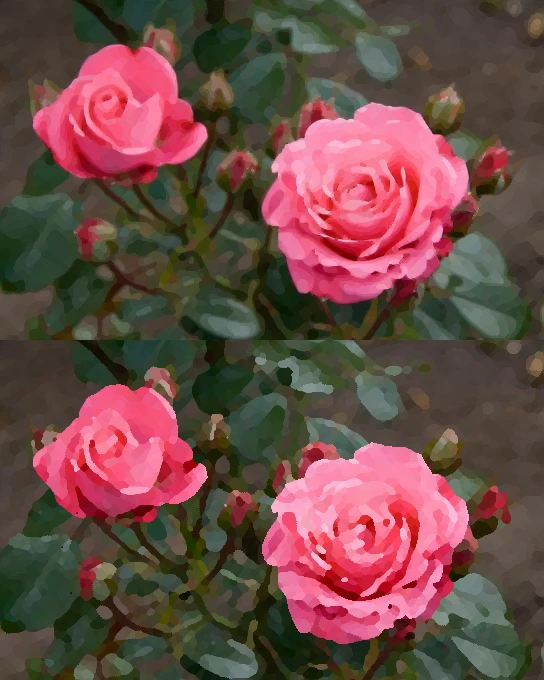 Using several tools of this editor, you can convert photos into clear and smooth pictures or even beautiful images like oil paintings. To increase the smoothening effect, increase the `colors` and `refine` values. But note that increasing the `refine` value will increase the processing time, and therefore this should be done with concern for your time, computer speed, and resources. Increasing the colors adjustment will result in a more painting like picture. To get an art/drawing/painting like effect, you can apply the smoothening more, to curve sharp edges or Jagged lines excessively. The default settings on controls are values for slight adjustments, to improve photos with minimal change of appearance; However, for painting/drawing/art effects you will need to increase these control values highly. If you want to make color areas more clear, without much color mixing, you have to set the `colors` value to a rather low level, so that small color ranges are mixed into one color. Setting this value high will result in a picture more like a painting, rather than a photo. Also, increase 'refine' setting to increase the smoothen effect. For small images, you would see significant changes quickly. But for large images, please repeat the process on the result image, several times, for a significant change.
For more customization, easily apply color tools, before smoothen
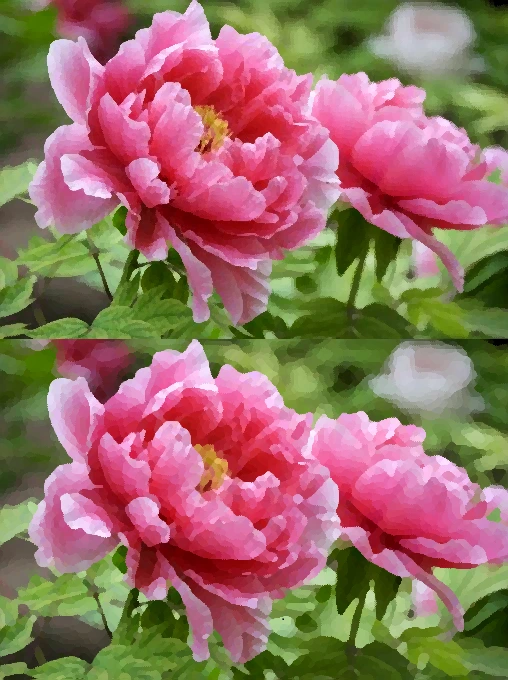
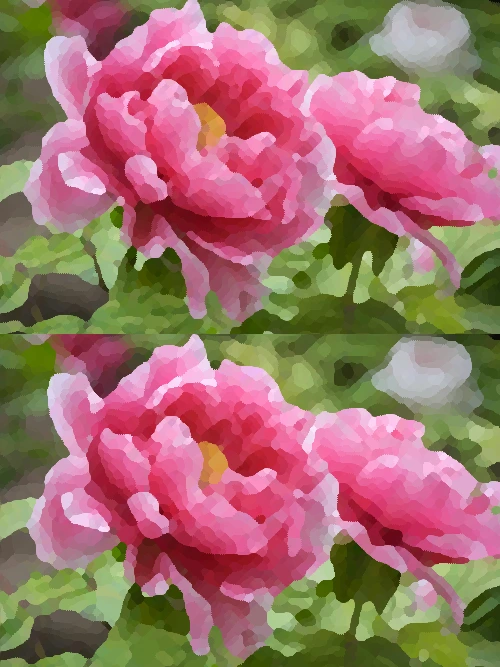 For best results or more customization, you will need to do several operations for initial color enhancement, before smoothening image. You can use this editor or any other external editor to adjust the colors first. Finally, apply the smoothening, gradually making adjustments to control values for testing. For intense smoothening, try increasing `colors` to a high level and doing an initial smoothening. Subsequently, you can redo/repeat the smoothening several times on the result, reducing the `colors` value step by step, to further smoothen small color ranges. This procedure would give you better results. Small images will show a quick change, but for large images, repeat the process on the result picture, several times, until you see a clear and satisfactory change.