Clear, Smooth Image, Online, Instantly
Convert Photo to Clear Smooth Image, by 1 Click
1. Choose Image file, 2. Press submit button3. Download result. Easily, Smoothen images using this exclusive editor. With this image editor, You can make color ranges in the image more smooth and clear, and make color edges (edges of shapes) smooth too. Increase `colors` adjustment for excessive smoothening effect. Maintain low value for `colors` control, if you want to limit the color mixing (smoothening) to small color areas (small color ranges). For a more painting like effect, increase the `colors` and `refine` values of controls. When you apply the smoothening tool, Jagged lines would reduce, and color spaces/areas will become more consistent, with less blemishes. Repeat smoothening, while gradually reducing the `colors` setting, for best results. You can see the smoothening effect quickly and more effectivly in smaller images. But for larger images, repeat the process several times for best results.
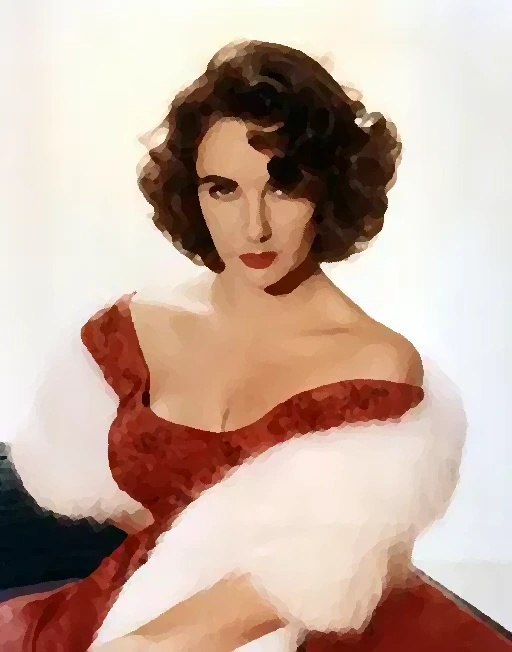
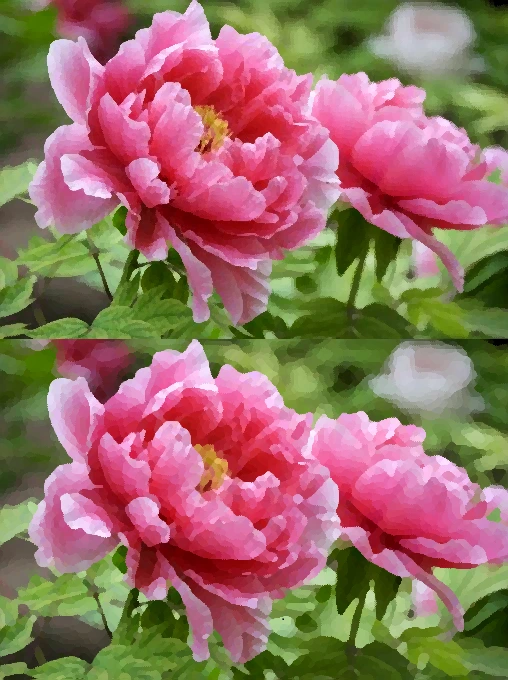
Smoothen small areas: color mixing less
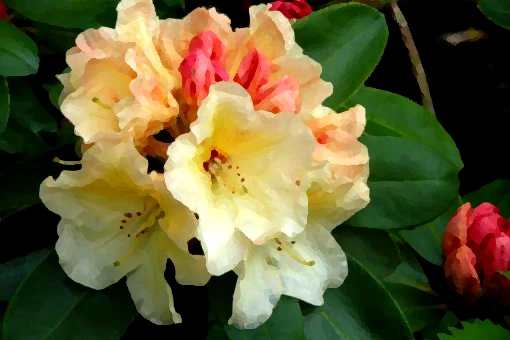
photo smoothen : with more color mixing
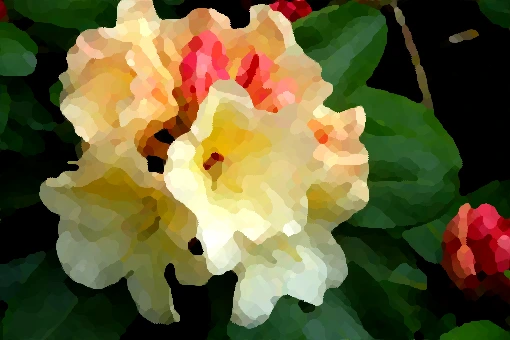
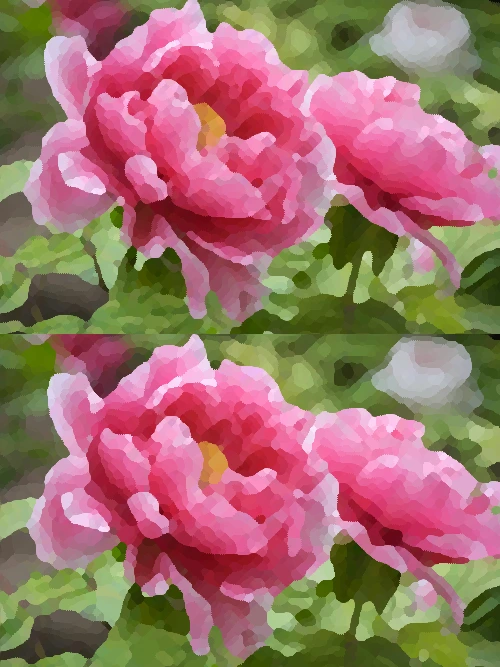
Intensely image smoothen by more color mixing
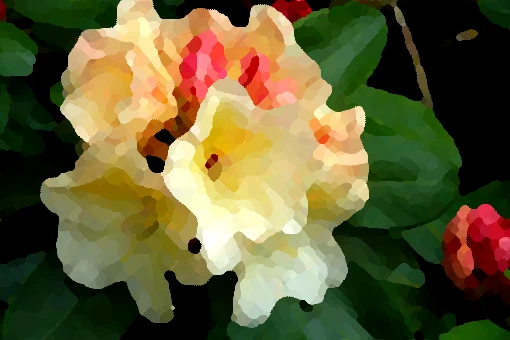
Convert to Cartoon , Painting , or Resize/Crop
Transformation of Shapes in Image
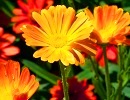
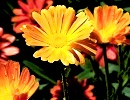
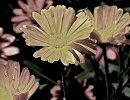
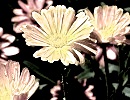
Beautiful Gray Shades Pictures
Replace Colors Easily
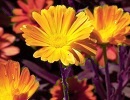
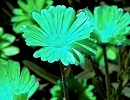
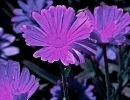
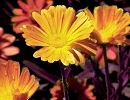
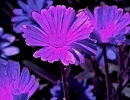
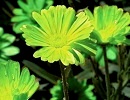
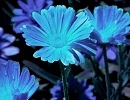
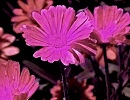
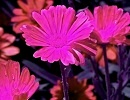
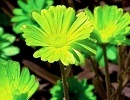
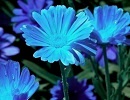
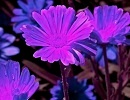
Increase or Reduce RGB Primary Colors, Retaining Color Balance
Increase R/G/B
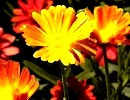
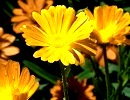
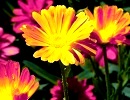
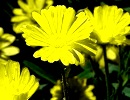
Decrease R/G/B
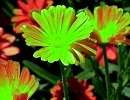
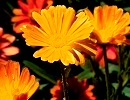
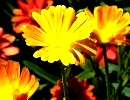
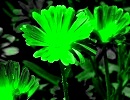
Convert to Cartoon , Painting , or Resize/Crop
Transformation of Shapes in Image
Resize or Crop Image
Adjustments to make more clear and smooth image
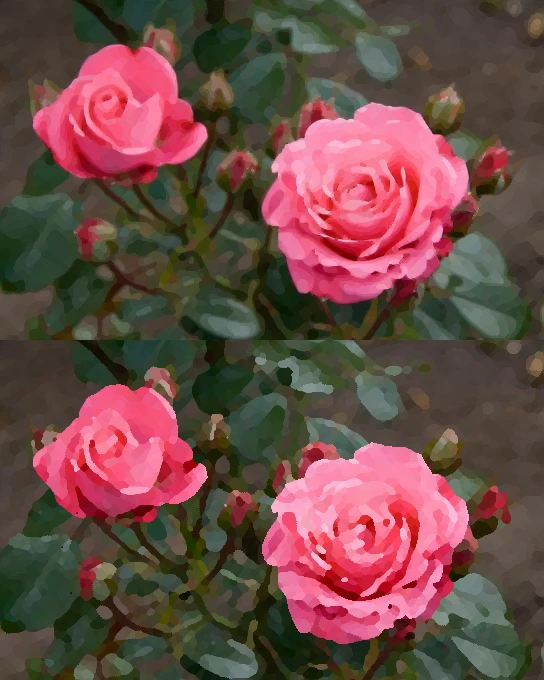 Using several tools of this editor, you can convert photos into clear and smooth pictures or even beautiful images like oil paintings. To increase the smoothening effect, increase the `colors` and `refine` values. But note that increasing the `refine` value will increase the processing time, and therefore this should be done with concern for your time, computer speed, and resources. Increasing the colors adjustment will result in a more painting like picture. To get an art/drawing/painting like effect, you can apply the smoothening more, to curve sharp edges or Jagged lines excessively. The default settings on controls are values for slight adjustments, to improve photos with minimal change of appearance; However, for painting/drawing/art effects you will need to increase these control values highly. If you want to make color areas more clear, without much color mixing, you have to set the `colors` value to a rather low level, so that small color ranges are mixed into one color. Setting this value high will result in a picture more like a painting, rather than a photo. Also, increase 'refine' setting to increase the smoothen effect. For small images, you would see significant changes quickly. But for large images, please repeat the process on the result image, several times, for a significant change.
For more customization, easily apply color tools, before smoothen
 For best results or more customization, you will need to do several operations for initial color enhancement, before smoothening image. You can use this editor or any other external editor to adjust the colors first. Finally, apply the smoothening, gradually making adjustments to control values for testing. For intense smoothening, try increasing `colors` to a high level and doing an initial smoothening. Subsequently, you can redo/repeat the smoothening several times on the result, reducing the `colors` value step by step, to further smoothen small color ranges. This procedure would give you better results. Small images will show a quick change, but for large images, repeat the process on the result picture, several times, until you see a clear and satisfactory change.